In one of my earlier post https://www.wojcieh.net/vcenter-server-5-5-on-sql-server-2012-installation-part-2/ I was asked how to create application user in Active Directory.
In few steps, I will explain how to do it and I will show you how to use it.
Why do we use application users at all?
There are several reason to create such users in Active Directory:
- User isolation, each application user is used for one and only application/service
- User has stronger password than normal users - it is more secure
- Services which are using such user are easier to manage
How to create application user?
It is a very easy task. Create desired user in Active Directory like any other users. I suggest to create and follow username scheme - for example, you can use app-username, ap-username or application-name as username.
After a user is created set a long and difficult password and store it securely. A second thing you have to do is to grant application user rights to start service. You can do it by editing Local Group Policy. Click Start \ **Run **\ **gpedit.msc **that you can change the desired service to be managed by the application user.
Navigate to **Local Computer Policy **\ **Windows Settings **\ **Security Settings **\ **Local Policies **
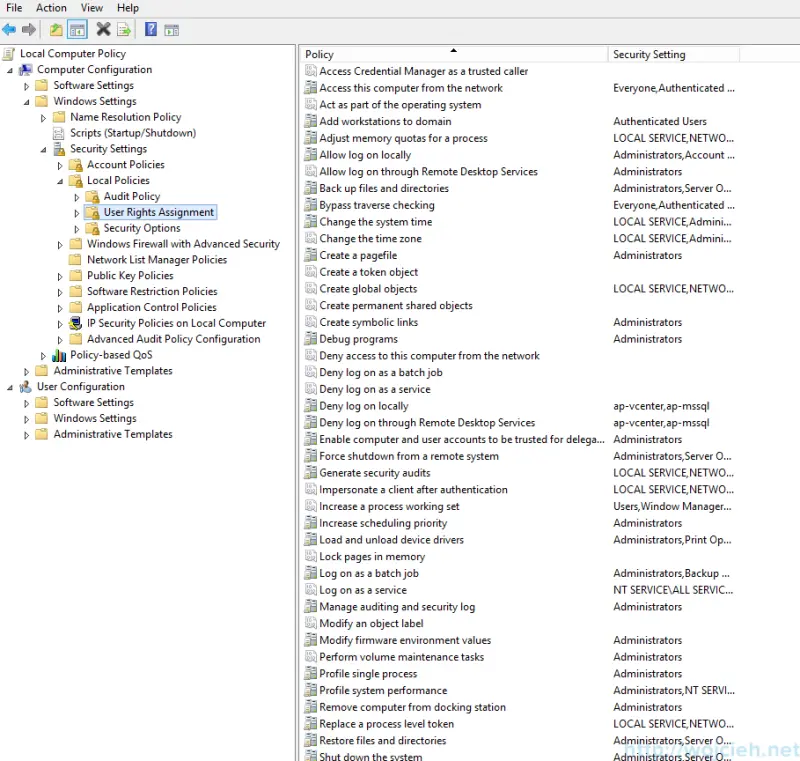
Click Logon as a service and provide desired application username.
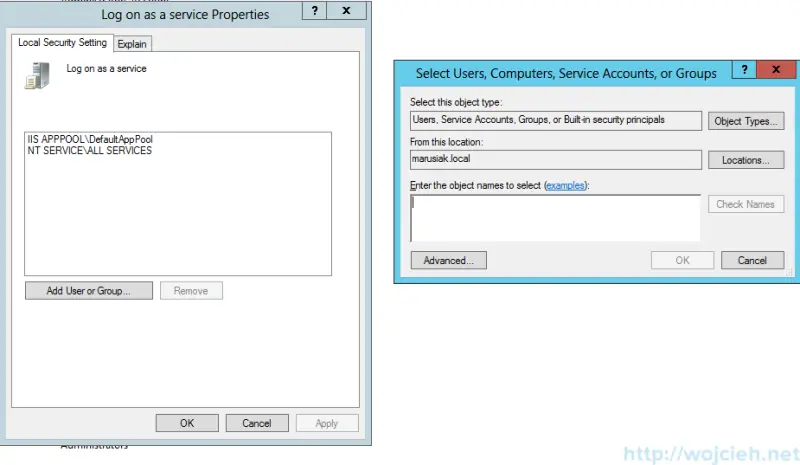
Application user security - word of advice
After you successfully started service as application user I suggest doing the following to keep your environment secure.
- Store application user password securely
- Don’t use the same username for more than one service.
- Create new Group Policy which denies your application user to login locally and through Remote Desktop Service (RDP).
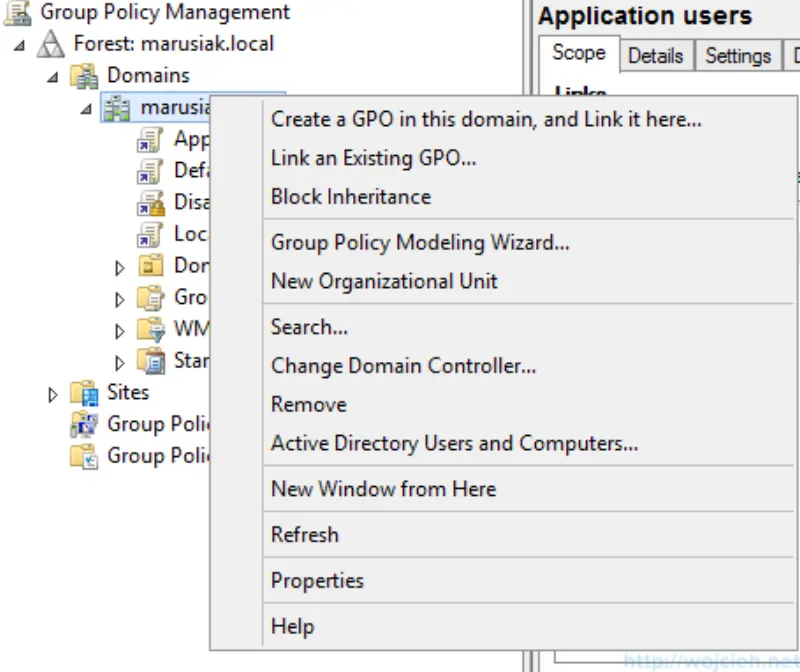
- You can do it simply by clicking in Group Policy Management console by clicking Create a GPO in this domain, and link it here.
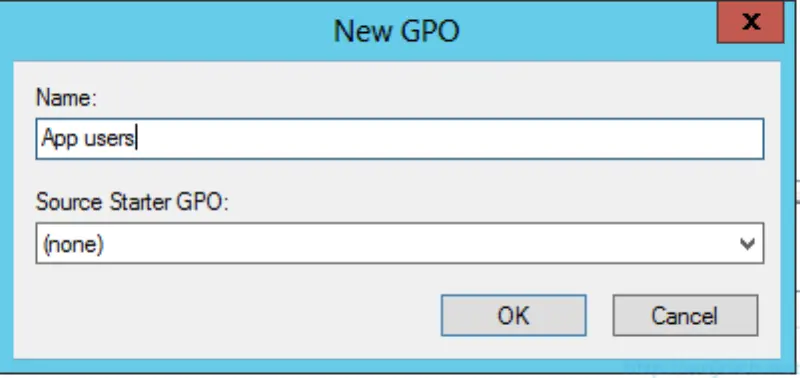
- Provide GPO name
- Click Edit
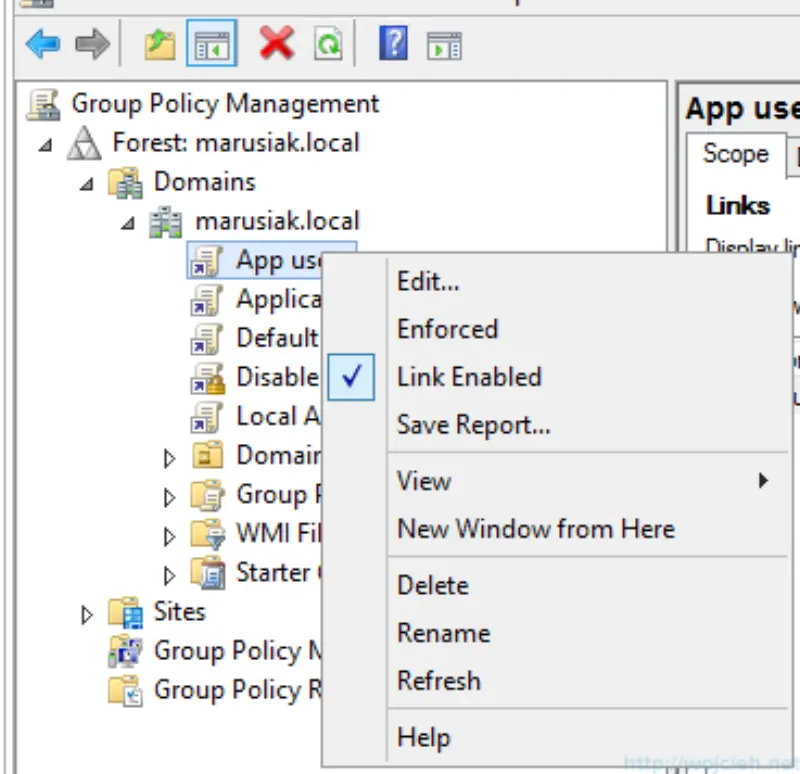
- Navigate to Computer Configuration \ Policies \ Windows Settings \ Security Settings \ Local Policies and set values for Deny log on locally and Deny log on through Remote Desktop Services for application accounts.
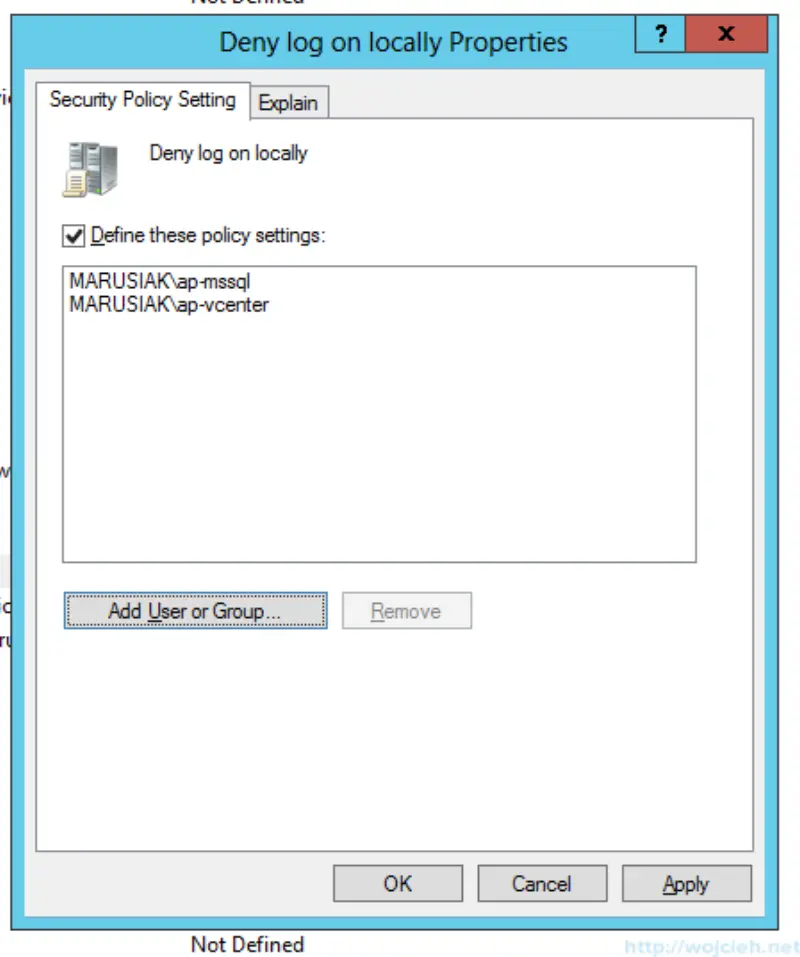
- After that run **gpupdate /force **on servers to refresh policy immediately or wait until it will be applied globally.